
| Minimum Software Version | 8.18.10 |
| Solution(s) | Cases International ✓ Cases US ✓ Institutions ⨉ Counsel ✓ |
Explains how to set up Microsoft Office integration on Windows using Desktop Connect, allowing documents to be opened directly from Opus 2 and saved back to the platform.
Microsoft Office integration enables users to open documents stored in Opus 2 directly in Microsoft Office applications (such as Word, Excel, or PowerPoint) and save any changes back to the platform.
This functionality requires the Desktop Connect application to be installed on the user’s Windows machine. Desktop integration must first be enabled by an Opus 2 operator at the system level. Once enabled, individual users can complete the setup through their profile in Opus 2.
Setting up Microsoft Office integration (Windows)
- Ensure Desktop integration has been enabled by an Opus 2 operator.
- Log in to the Opus 2 Platform.
- Select the User profile icon and choose Profile.
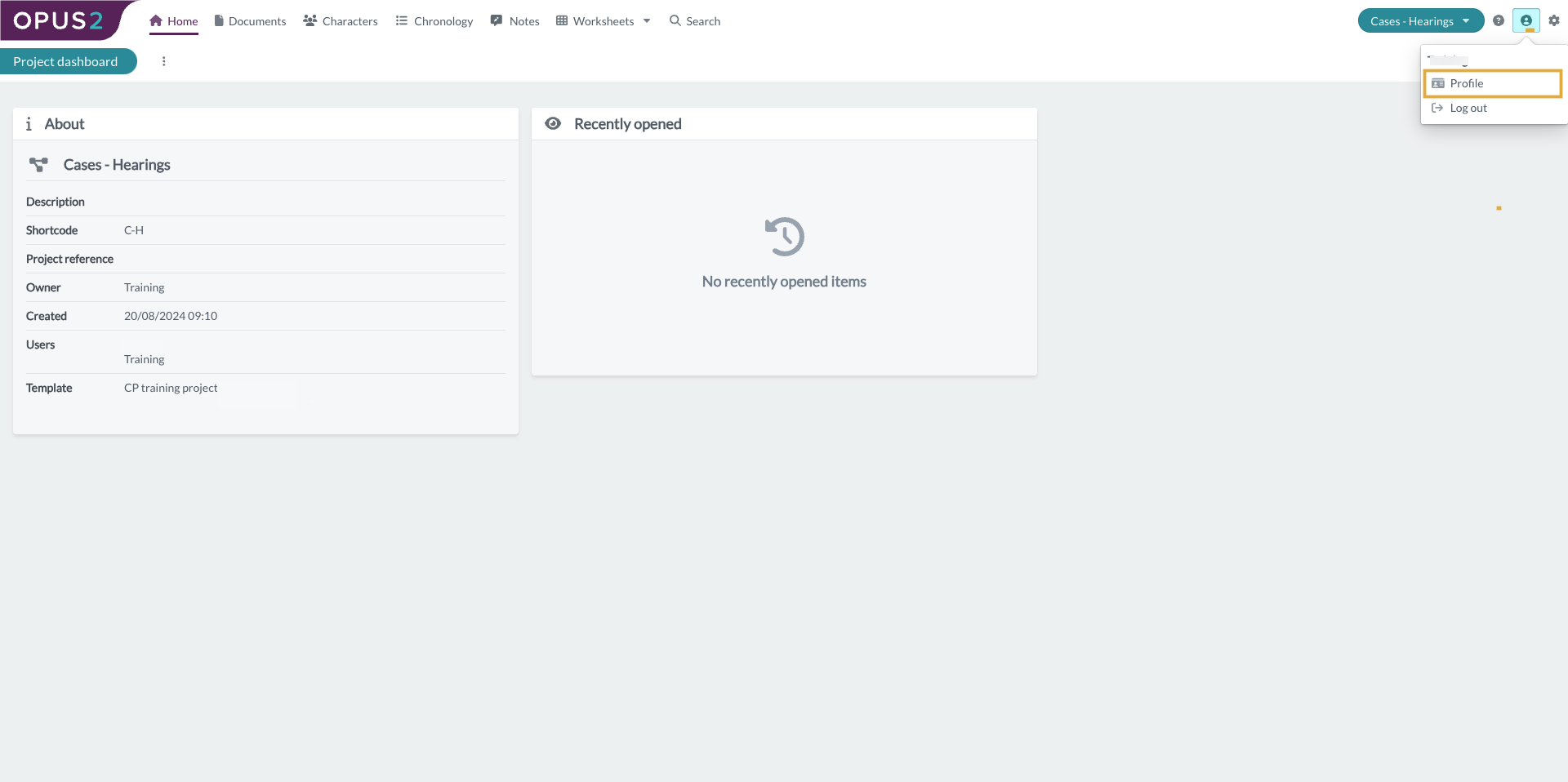
- Open the Desktop integration tab.
- Click Download for Windows to download the Desktop Connect installer.
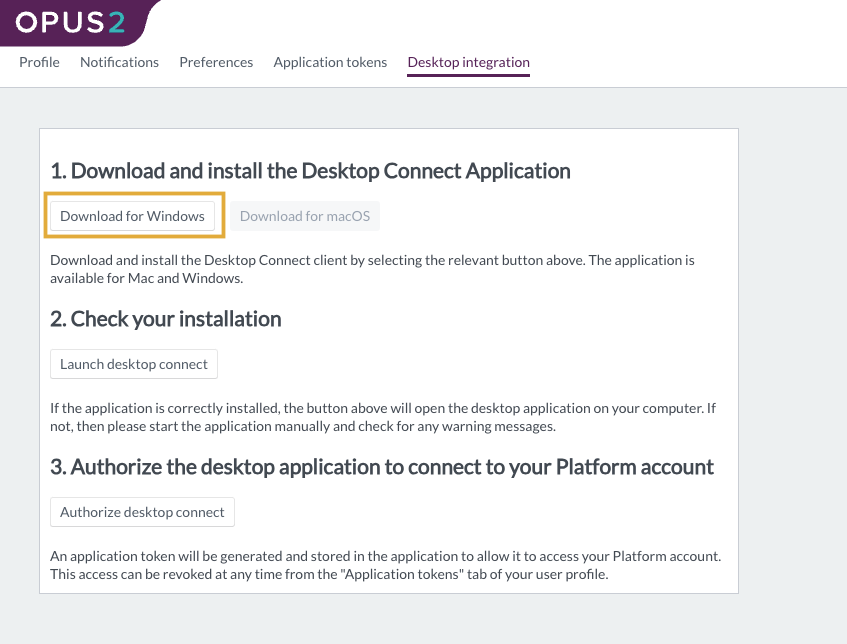
- Run the installer and complete the installation on your machine.
- Once installed, click Launch Desktop Connect to confirm the installation was successful.
- Click Authorize Desktop Connect to allow the application to access your Opus 2 account.
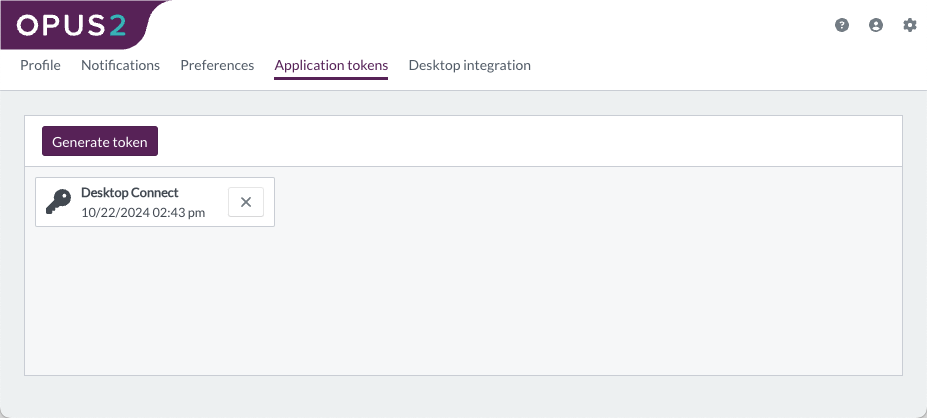
After authorisation, an application token is generated. This token can be viewed under:
User profile icon → Profile → Application tokens
This completes the setup of Microsoft Office integration.
Use Cases
- Opening a Word document directly from Opus 2, editing it in Microsoft Word, and saving changes back to the platform.
- Updating an Excel spreadsheet stored in Opus 2 without downloading and re‑uploading the file manually.
Related Links
Install and authorise Desktop Connect to streamline document editing with Microsoft Office. If Desktop integration is not visible in your profile, contact your Opus 2 administrator to request access.