
| Minimum Software Version | 9.51.0 |
| Solution(s) | Hearings ⨉ Cases International ✓ Cases US ✓ Institutions ⨉ Counsel ✓ |
User Experience Improvements
Persistent sort indicators for sortable columns
Sortable columns within document tables now display sort indicators at all times.
Previously, sort indicators were only visible when a column was actively sorted. Sortable columns now display a subtle up/down arrow to indicate that sorting is available, while the currently sorted column displays a more prominent directional indicator.
Additional improvements include:
- Clicking anywhere within the column header now activates sorting
- Non-sortable columns no longer display sort indicators
These changes make sorting functionality easier to discover and use.
Improved visual distinction between active and focused navigation tabs
Navigation tabs now provide clearer visual indicators for active and keyboard-focused states.
The currently active tab is displayed with an underline, while a tab that has keyboard focus displays a focus ring. When both states apply to the same tab, both indicators remain visible.
This improvement provides clearer navigation feedback, particularly for keyboard users and those using assistive technologies.
Improved keyboard navigation on the Documents Dashboard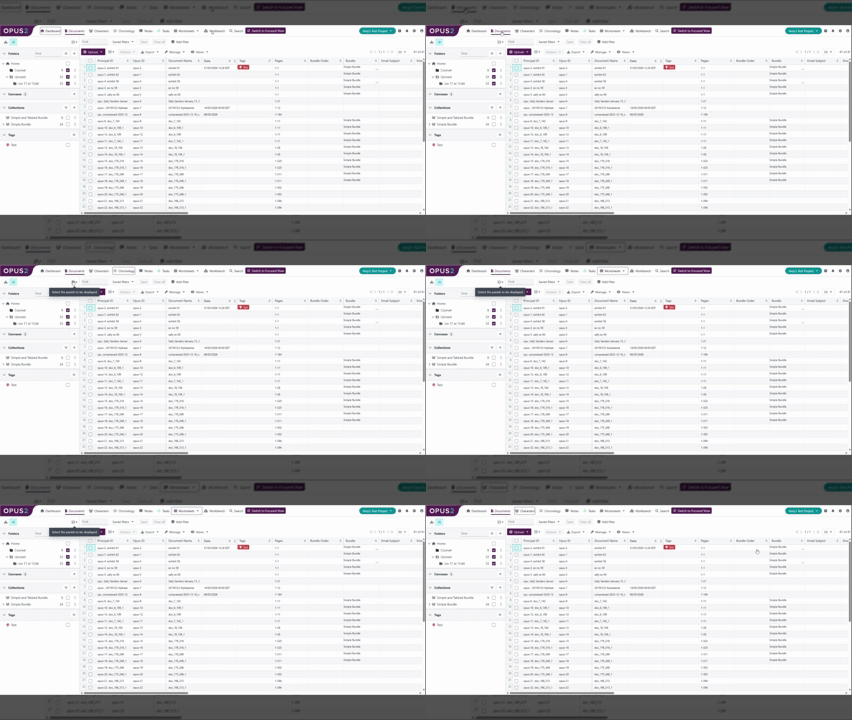
Keyboard navigation within the Documents Dashboard now follows a more logical tab sequence.
Pressing Tab now moves focus through the page in a predictable order:
- Navigation
- Toolbar
- Table column headers
- Table rows
- Pagination controls
Previously, some interactive elements could be skipped or reached out of sequence, making keyboard navigation less intuitive.
This enhancement improves accessibility and makes navigating document lists more efficient for keyboard users.
Bug Fixes - Portal page editor tag selections are now retained
Tag selections made within the Portal page editor are now correctly saved and displayed.
Previously, tags selected using the Apply tags / Select tags dialogue could be lost immediately after confirming the selection. This required users to repeatedly reselect tags when configuring Input form components.
Selected tags now:
- Remain selected when reopening the tag picker
- Display correctly within the component configuration panel
- Persist as expected after being applied
This improvement streamlines portal form configuration and reduces the need for repeated manual updates.
Upcoming features
Search
We're improving our Search functionality to deliver faster, more accurate, and more reliable results.
These updates seek to:
- Return results more quickly and with greater accuracy.
- Provide clearer, more consistent highlighting so results are easier to understand and trust.
- Enable us to detect and resolve issues earlier through improved monitoring.
Related documentation
Opus 2 has help information accessible from within the application; accessible by clicking the question mark and then selecting Documentation in the upper right area of the platform application. You can also access the documentation at: Opus 2 Support.
How to contact us
To contact us about the documentation, or if you have any other questions or issues about Opus 2 solutions, contact Opus 2 Platform Support by emailing Opus 2 Platform Support.