
| Minimum Software Version | 9.43.1 |
| Solution(s) | Hearings ⨉ Cases International ✓ Cases US ✓ Institutions ⨉ Counsel ✓ |
Table of Contents Editor for Collections
You can now create and customise a Table of Contents (ToC) for collections in Detailed View, making it easier to produce electronic bundles that meet court requirements and organisational house styles.
The new Table of Contents Editor provides flexible formatting and layout controls, allowing you to build, preview, and export a customised Table of Contents directly from a collection. Changes are previewed instantly, making it easy to refine the appearance of your bundle before export.
Users with the View All and Edit Collections permissions can create and manage Table of Contents templates.
Create customised Table of Contents layouts
You can now generate a custom Table of Contents for an entire collection or for an individual collection section.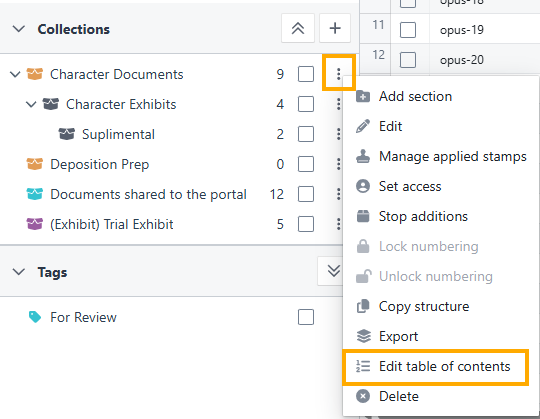
When editing a Table of Contents:
- Selecting a collection includes all sections and documents within that collection
- Selecting an individual section creates a Table of Contents containing only the contents of that section
- Changes are previewed immediately within the Table of Contents Editor
This provides greater flexibility when preparing bundles for different audiences or proceedings.
Flexible metadata and page-numbering options
You can now choose which metadata fields appear in your Table of Contents.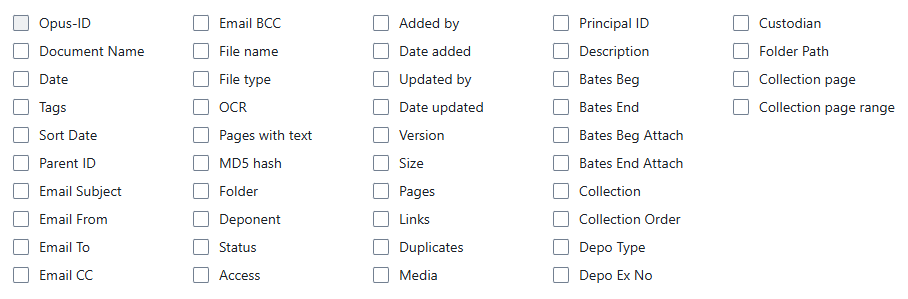
Selected columns are displayed in the order they are chosen. When document metadata is updated within Detailed View, the associated values are automatically reflected in the Table of Contents.
New page-numbering fields
Additional page-numbering fields are now available for use within Table of Contents templates, stamps, and bundle exports, providing greater flexibility when working with document and bundle pagination. These fields provide additional control when designing Table of Contents layouts and stamp templates, ensuring that page references can accurately reflect either document-level numbering or the final pagination of an exported bundle, depending on your requirements
Collection page
The Collection page field displays the individual page number as it appears in the exported bundle or PDF.
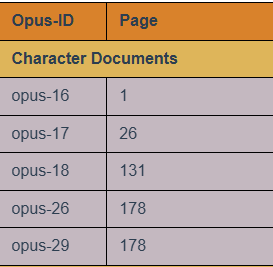
This field is available within the Table of Contents and reflects the final pagination presented to end users in the exported document.
Collection page range
The Collection page range field displays the page range for a document within the exported bundle.
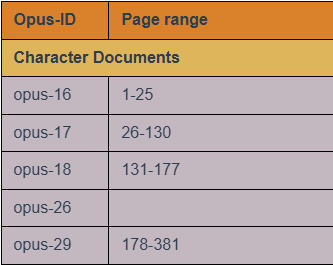
This field can be used in the Table of Contents to help readers quickly locate a document that appears within the overall bundle.
Page number
The Page number field is available for use in stamps.
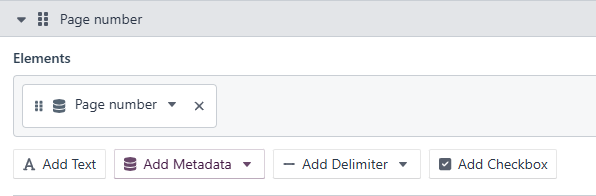
This field is based on the Platform page numbering for the document. If a collection is configured so that page numbering restarts at the beginning of each section, the value displayed reflects that section-level numbering.
Collection page number
The Collection page number field is available for use in stamps.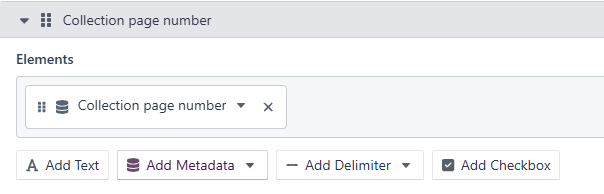
Unlike the Page number field, this field reflects the final page number shown in the exported bundle or PDF.
This field is particularly useful when:
- Sections use page-number prefixes
- Numbering continues across multiple sections
- Cover pages and Table of Contents pages need to be included in the overall page count
Pages
The Pages field displays the page range for an individual document within the Platform.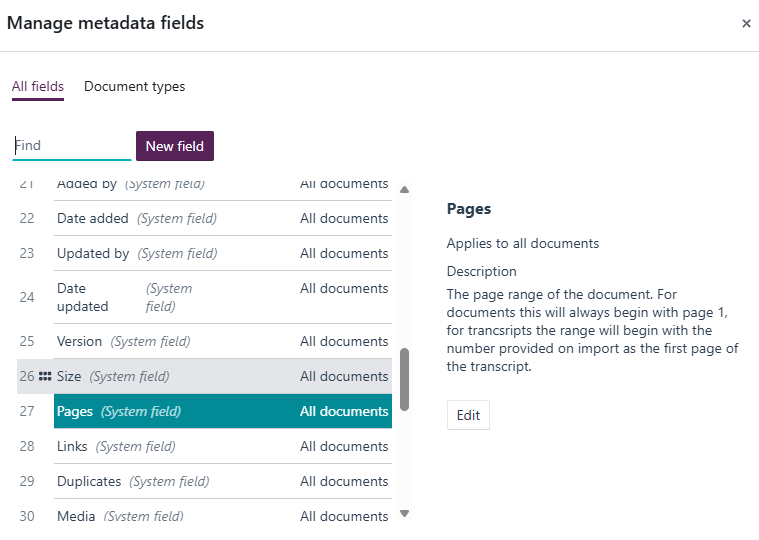
Where page numbering restarts within sections, the page range reflects the numbering for that section rather than the cumulative bundle page range.
Support for unified and sectional Table of Contents layouts
The Table of Contents Editor now supports multiple layout options.
You can choose between:
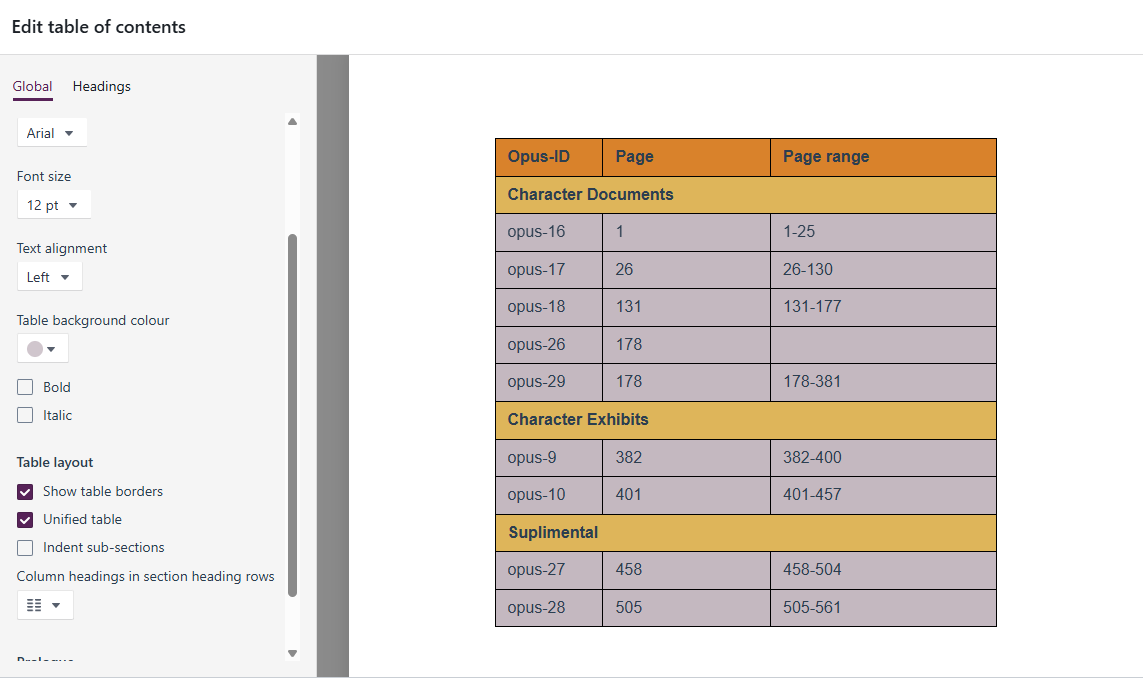
- Unified Table – Displays all collection content in a single continuous table
- Sectional Table of Contents – Displays separate tables for each collection section
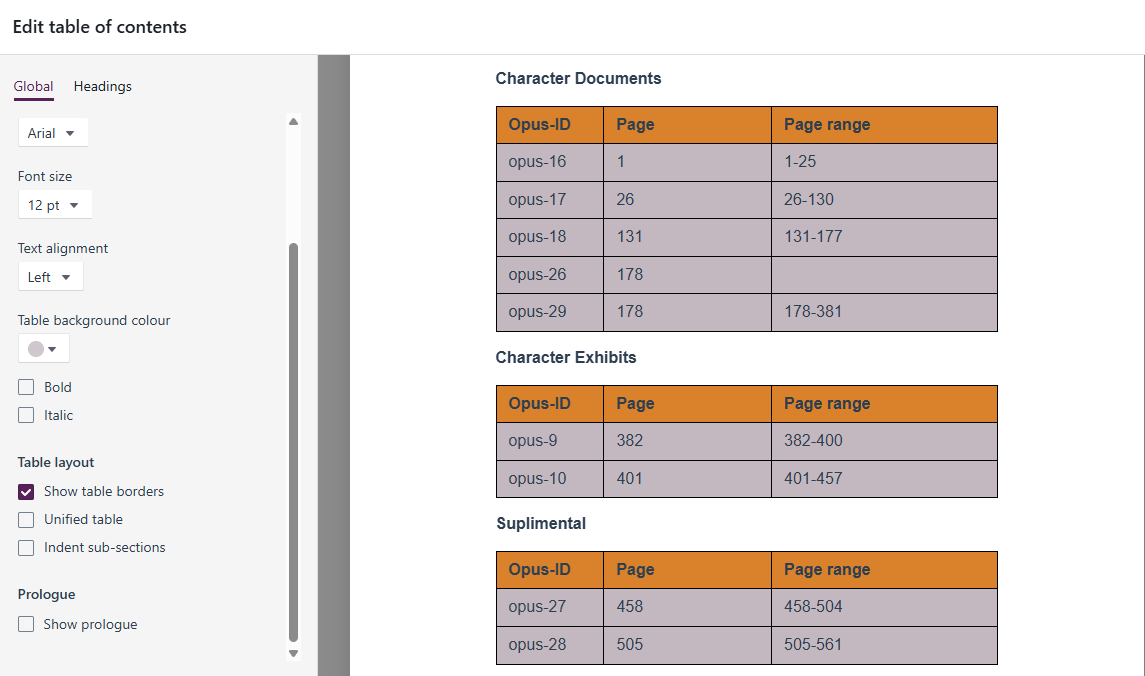
For unified layouts, you can also choose whether column headings appear as part of the section heading row or in a separate row above each section.
Sub-sections can optionally be indented to make document hierarchies easier to read.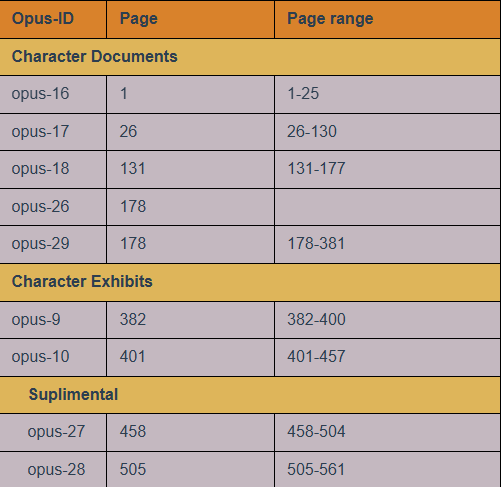
Resizable Table of Contents columns
You can now manually resize columns within the Table of Contents Editor.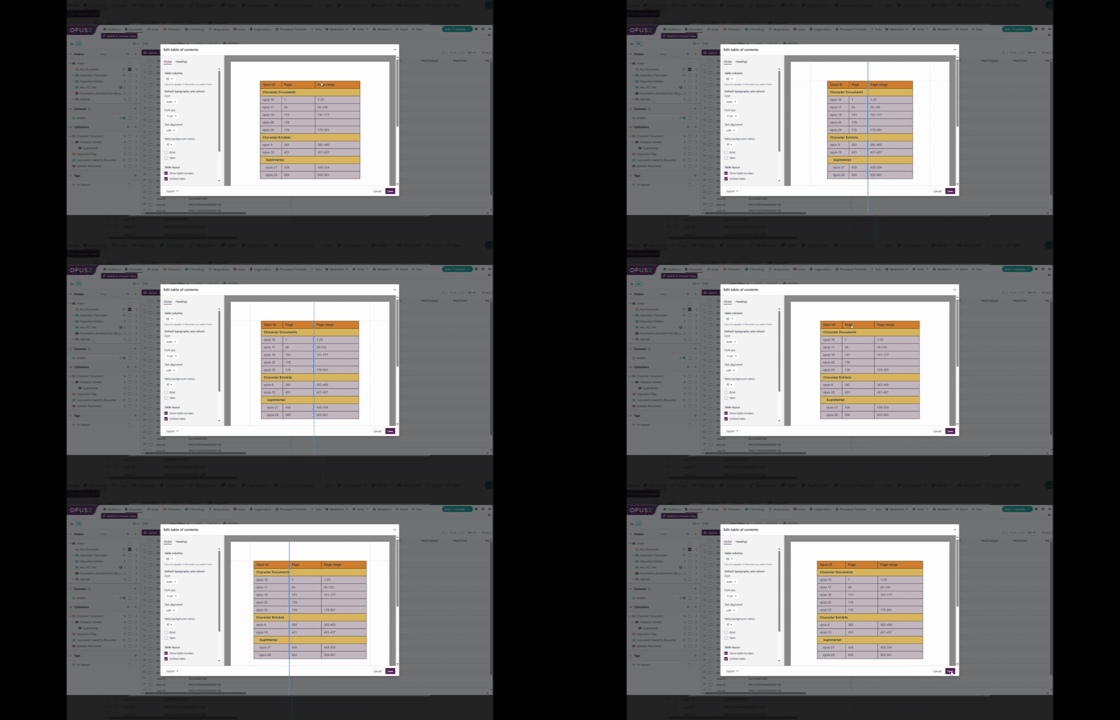
When configuring a Table of Contents, selected metadata fields are displayed as columns in the preview. Columns can be resized to optimise the layout and improve readability, particularly when working with longer document titles or larger numbers of metadata fields.
This provides greater flexibility when designing bundle indexes and helps ensure that exported Word and PDF outputs fit within the available page width while presenting information clearly.
When resizing columns:
- Changes are immediately reflected in the preview
- Column widths are retained as part of the saved Table of Contents configuration
- Resizing can be used alongside custom metadata selections and formatting options
- This is particularly useful when including multiple metadata fields or bundle page-numbering columns
Column resizing gives you more control over the final appearance of your Table of Contents, helping you create professional, well-formatted bundle indexes tailored to your specific requirements.
Enhanced formatting and styling controls
A wide range of formatting options are now available within the Table of Contents Editor.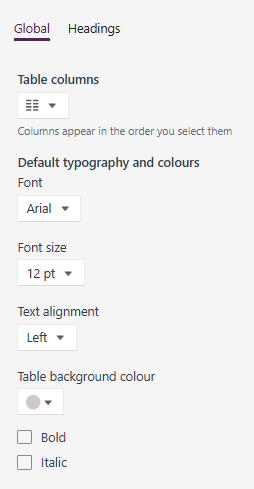
Global formatting settings include:
- Font selection
- Font size
- Text alignment
- Bold and italic styling
- Table background colour
- Table border display
You can also configure section-specific formatting, allowing individual section headers and column headers to override the global settings.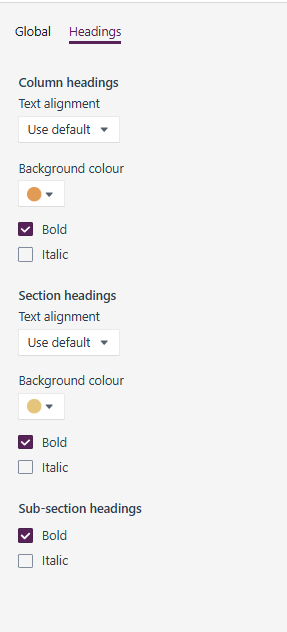
Available options include:
- Header alignment
- Background colours
- Bold and italic styling
- Section heading formatting
- Sub-section heading formatting
These controls make it easier to create Table of Contents layouts that align with court requirements, firm branding, or internal document standards.
Custom headings and prologue support
You can now add a custom title or heading to the top of the Table of Contents.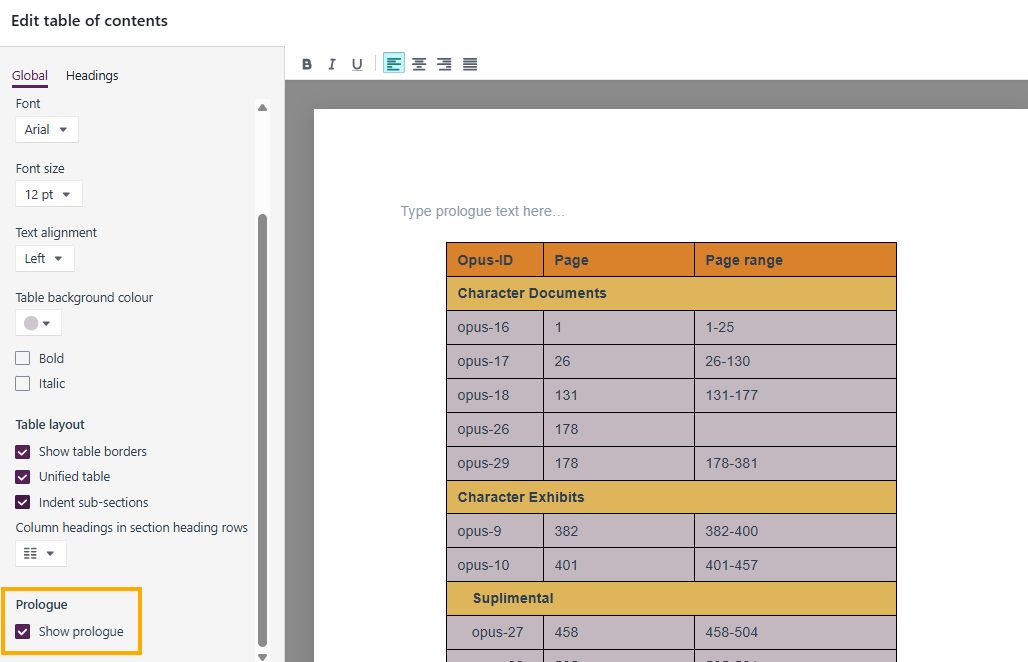
This allows organisations to replace the default heading with a title that reflects the purpose or structure of the bundle.
The heading is displayed in both preview and exported outputs.
Instant preview experience
The Table of Contents Editor includes a live preview pane that updates immediately as settings are changed.
This allows you to:
- Review formatting and layout changes in real time
- Validate column selections and page numbering
- Confirm styling before exporting
The preview helps reduce trial-and-error when creating bundle contents pages.
Export to Word or PDF
Once configured, your Table of Contents can be exported independently or included as part of a bundle export.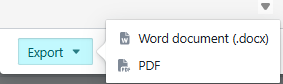
Available export formats include:
- Microsoft Word (.docx)
- PDF
The exported output preserves the selected layout, formatting, metadata columns, and page-numbering configuration.
Note: The Word and PDF export options within the Table of Contents Editor export only the Table of Contents. To export the Table of Contents together with all bundle documents, use the Export option from the collection export dialog. This ensures the Table of Contents is included as part of the complete bundle export.
Automatically updates when documents are added
Table of Contents contents update automatically as documents are added to the associated collection or section.
Formatting and layout selections are retained, ensuring that newly added documents appear using the existing Table of Contents configuration.
If other users have added documents while the editor is open, simply reopen the Table of Contents Editor to refresh the document list and display the latest collection contents.
Upcoming features
Stamps - Preview release
Based on customer feedback, we are investing in a new, modernised Stamps experience to provide an improved way to create, manage, and export stamps. The new Stamps feature will introduce, among other things:
- A more flexible and intuitive stamp builder, enabling you to easily create and customise stamps with concatenated fields, and helping you to design consistent, tailored stamps.
- Real-time preview to make stamp setup clearer and more predictable.
- Consistent stamp application and removal across documents, collections, and proxy documents, including the ability to remove a specific stamp, not just “remove all”.
- Metadata fields remain supported (as in Legacy Stamps), with more focused styling controls to prioritise consistent output between the platform and exports.
Search
We're improving our Search functionality to deliver faster, more accurate, and more reliable results.
These updates seek to:
- Return results more quickly and with greater accuracy.
- Provide clearer, more consistent highlighting so results are easier to understand and trust.
- Enable us to detect and resolve issues earlier through improved monitoring.
Related documentation
Opus 2 has help information accessible from within the application; accessible by clicking the question mark and then selecting Documentation in the upper right area of the platform application. You can also access the documentation at: Opus 2 Support.
How to contact us
To contact us about the documentation, or if you have any other questions or issues about Opus 2 solutions, contact Opus 2 Platform Support by emailing Opus 2 Platform Support.
Table of Contents Editor for Collections
You can now create and customise a Table of Contents (ToC) for collections in Detailed View, making it easier to produce electronic bundles that meet court requirements and organisational house styles.
The new Table of Contents Editor provides flexible formatting and layout controls, allowing you to build, preview, and export a customised Table of Contents directly from a collection. Changes are previewed instantly, making it easy to refine the appearance of your bundle before export.
Users with the View All and Edit Collections permissions can create and manage Table of Contents templates.
Create customised Table of Contents layouts
You can now generate a custom Table of Contents for an entire collection or for an individual collection section.
When editing a Table of Contents:
- Selecting a collection includes all sections and documents within that collection
- Selecting an individual section creates a Table of Contents containing only the contents of that section
- Changes are previewed immediately within the Table of Contents Editor
This provides greater flexibility when preparing bundles for different audiences or proceedings.
Flexible metadata and page-numbering options
You can now choose which metadata fields appear in your Table of Contents.
Selected columns are displayed in the order they are chosen. When document metadata is updated within Detailed View, the associated values are automatically reflected in the Table of Contents.
New page-numbering fields
Additional page-numbering fields are now available for use within Table of Contents templates, stamps, and bundle exports, providing greater flexibility when working with document and bundle pagination. These fields provide additional control when designing Table of Contents layouts and stamp templates, ensuring that page references can accurately reflect either document-level numbering or the final pagination of an exported bundle, depending on your requirements
Collection page
The Collection page field displays the individual page number as it appears in the exported bundle or PDF.
This field is available within the Table of Contents and reflects the final pagination presented to end users in the exported document.
Collection page range
The Collection page range field displays the page range for a document within the exported bundle.
This field can be used in the Table of Contents to help readers quickly locate a document that appears within the overall bundle.
Page number
The Page number field is available for use in stamps.
This field is based on the Platform page numbering for the document. If a collection is configured so that page numbering restarts at the beginning of each section, the value displayed reflects that section-level numbering.
Collection page number
The Collection page number field is available for use in stamps.
Unlike the Page number field, this field reflects the final page number shown in the exported bundle or PDF.
This field is particularly useful when:
- Sections use page-number prefixes
- Numbering continues across multiple sections
- Cover pages and Table of Contents pages need to be included in the overall page count
Pages
The Pages field displays the page range for an individual document within the Platform.
Where page numbering restarts within sections, the page range reflects the numbering for that section rather than the cumulative bundle page range.
Support for unified and sectional Table of Contents layouts
The Table of Contents Editor now supports multiple layout options.
You can choose between:
- Unified Table – Displays all collection content in a single continuous table
- Sectional Table of Contents – Displays separate tables for each collection section
For unified layouts, you can also choose whether column headings appear as part of the section heading row or in a separate row above each section.
Sub-sections can optionally be indented to make document hierarchies easier to read.
Resizable Table of Contents columns
You can now manually resize columns within the Table of Contents Editor.
When configuring a Table of Contents, selected metadata fields are displayed as columns in the preview. Columns can be resized to optimise the layout and improve readability, particularly when working with longer document titles or larger numbers of metadata fields.
This provides greater flexibility when designing bundle indexes and helps ensure that exported Word and PDF outputs fit within the available page width while presenting information clearly.
When resizing columns:
- Changes are immediately reflected in the preview
- Column widths are retained as part of the saved Table of Contents configuration
- Resizing can be used alongside custom metadata selections and formatting options
- This is particularly useful when including multiple metadata fields or bundle page-numbering columns
Column resizing gives you more control over the final appearance of your Table of Contents, helping you create professional, well-formatted bundle indexes tailored to your specific requirements.
Enhanced formatting and styling controls
A wide range of formatting options are now available within the Table of Contents Editor.
Global formatting settings include:
- Font selection
- Font size
- Text alignment
- Bold and italic styling
- Table background colour
- Table border display
You can also configure section-specific formatting, allowing individual section headers and column headers to override the global settings.
Available options include:
- Header alignment
- Background colours
- Bold and italic styling
- Section heading formatting
- Sub-section heading formatting
These controls make it easier to create Table of Contents layouts that align with court requirements, firm branding, or internal document standards.
Custom headings and prologue support
You can now add a custom title or heading to the top of the Table of Contents.
This allows organisations to replace the default heading with a title that reflects the purpose or structure of the bundle.
The heading is displayed in both preview and exported outputs.
Instant preview experience
The Table of Contents Editor includes a live preview pane that updates immediately as settings are changed.
This allows you to:
- Review formatting and layout changes in real time
- Validate column selections and page numbering
- Confirm styling before exporting
The preview helps reduce trial-and-error when creating bundle contents pages.
Export to Word or PDF
Once configured, your Table of Contents can be exported independently or included as part of a bundle export.
Available export formats include:
- Microsoft Word (.docx)
The exported output preserves the selected layout, formatting, metadata columns, and page-numbering configuration.
Note: The Word and PDF export options within the Table of Contents Editor export only the Table of Contents. To export the Table of Contents together with all bundle documents, use the Export option from the collection export dialog. This ensures the Table of Contents is included as part of the complete bundle export.
Automatically updates when documents are added
Table of Contents contents update automatically as documents are added to the associated collection or section.
Formatting and layout selections are retained, ensuring that newly added documents appear using the existing Table of Contents configuration.
If other users have added documents while the editor is open, simply reopen the Table of Contents Editor to refresh the document list and display the latest collection contents.
Upcoming features
Stamps - Preview release
Based on customer feedback, we are investing in a new, modernised Stamps experience to provide an improved way to create, manage, and export stamps. The new Stamps feature will introduce, among other things:
- A more flexible and intuitive stamp builder, enabling you to easily create and customise stamps with concatenated fields, and helping you to design consistent, tailored stamps.
- Real-time preview to make stamp setup clearer and more predictable.
- Consistent stamp application and removal across documents, collections, and proxy documents, including the ability to remove a specific stamp, not just “remove all”.
- Metadata fields remain supported (as in Legacy Stamps), with more focused styling controls to prioritise consistent output between the platform and exports.
Search
We're improving our Search functionality to deliver faster, more accurate, and more reliable results.
These updates seek to:
- Return results more quickly and with greater accuracy.
- Provide clearer, more consistent highlighting so results are easier to understand and trust.
- Enable us to detect and resolve issues earlier through improved monitoring.
Related documentation
Opus 2 has help information accessible from within the application; accessible by clicking the question mark and then selecting Documentation in the upper right area of the platform application. You can also access the documentation at: Opus 2 Support.
How to contact us
To contact us about the documentation, or if you have any other questions or issues about Opus 2 solutions, contact Opus 2 Platform Support by emailing Opus 2 Platform Support.