
| Minimum Software Version | 8.18.5 (2026S03) |
| Solution(s) | Hearings X Cases International ✓ Cases US ✓ Institutions ✓ Counsel ✓ |
Release types
- (GA) - The feature is Generally Available and visible in the product to users, depending on their role.
- (GA – config) - The feature is Generally Available, but templates and existing projects must be configured before it can be put to use.
- (GA – feature) - The feature is Generally Available, but only if switched on by an Opus 2 operator. Only some solutions are expected to use the feature. Commercial add-ons also come under this category and are only be enabled for clients who have purchased them.
- (GA – feature and config) – The feature is Generally Available but only if switched on by an Opus 2 operator. Only some solutions are expected to use the feature. Once switched on, it requires configuration of the template and existing projects before the feature can be used.
Improvements
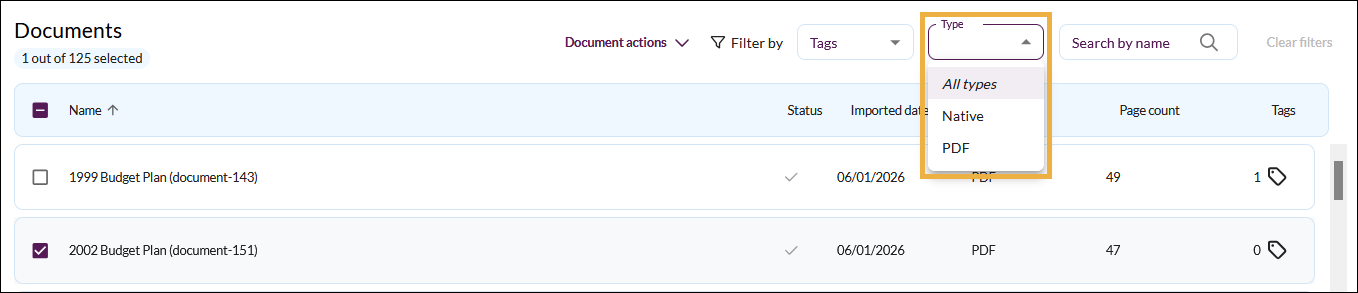
Filter by Type added to Focused View (GA - feature)️
When using the Documents Library, you can now filter documents by type, for example, PDF, Native, or Transcript. The dropdown list updates to reflect the available choices for types in the current library.
Learn more: Using Focused View
Refinement of active document selection in Matter and Document Assist (GA)️
Previously, you could only select documents in Document Assist (limit 150 pages), and not in Matter Assist. In Matter Assist, you could only work with the whole corpus of documents. Now you also have the option to select a multiple documents (up to 2000) in Matter Assist, in addition to working with the entire corpus.
When working, select this icon  in the Prompt field to add or remove documents from your active selection. Select or clear the checkboxes for each document to do this. The prompt field shows you how many documents are being considered at any time, for example, Ask about the 3 selected documents.
Learn more: Using Focused View
Vectorisation status for documents added to Focused View (GA)
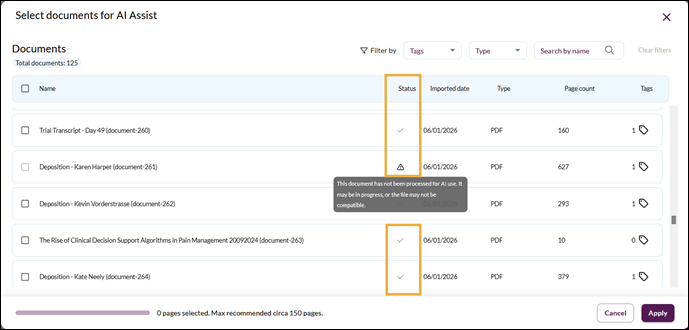
Documents uploaded to Opus 2 Cases using the Detailed View need to be vectorised to become available to the Focused View. There is now a vectorisation status column shown in both the Documents Library and when adding/removing documents in Matter Assist or Document Assist. If a document has been successfully vectorised you see a tick; if not, the document is unavailable for selection and shows a warning triangle.
Learn more: Focused View FAQs
Controlling access to documents in Focused View (GA)️
Access to Focused View and to documents shown within Focused View can be controlled at various levels.
Opus 2's Operations staff can control the use of Focused View at a tenant level or workspace level.
Permissions work as follows:
- If no users are allowed to view a document, the document does not enter the AI workflow and is not displayed anywhere.
- If a user is not allowed to view a document, it is unavailable for selection in Focused View but is still listed. Citations are also greyed out and unavailable.
- AI responses may still include insights derived from restricted documents.
Learn more: Using Focused View and Controlling access to Focused View
Tagging multiple documents in Focused View (GA)️
You can now tag several documents at once when using the Document Actions menu or when selecting the tag icon in Documents Library.
Learn more: Using Focused View
Configuring AI Workbench to capture multiple sources (GA - config)
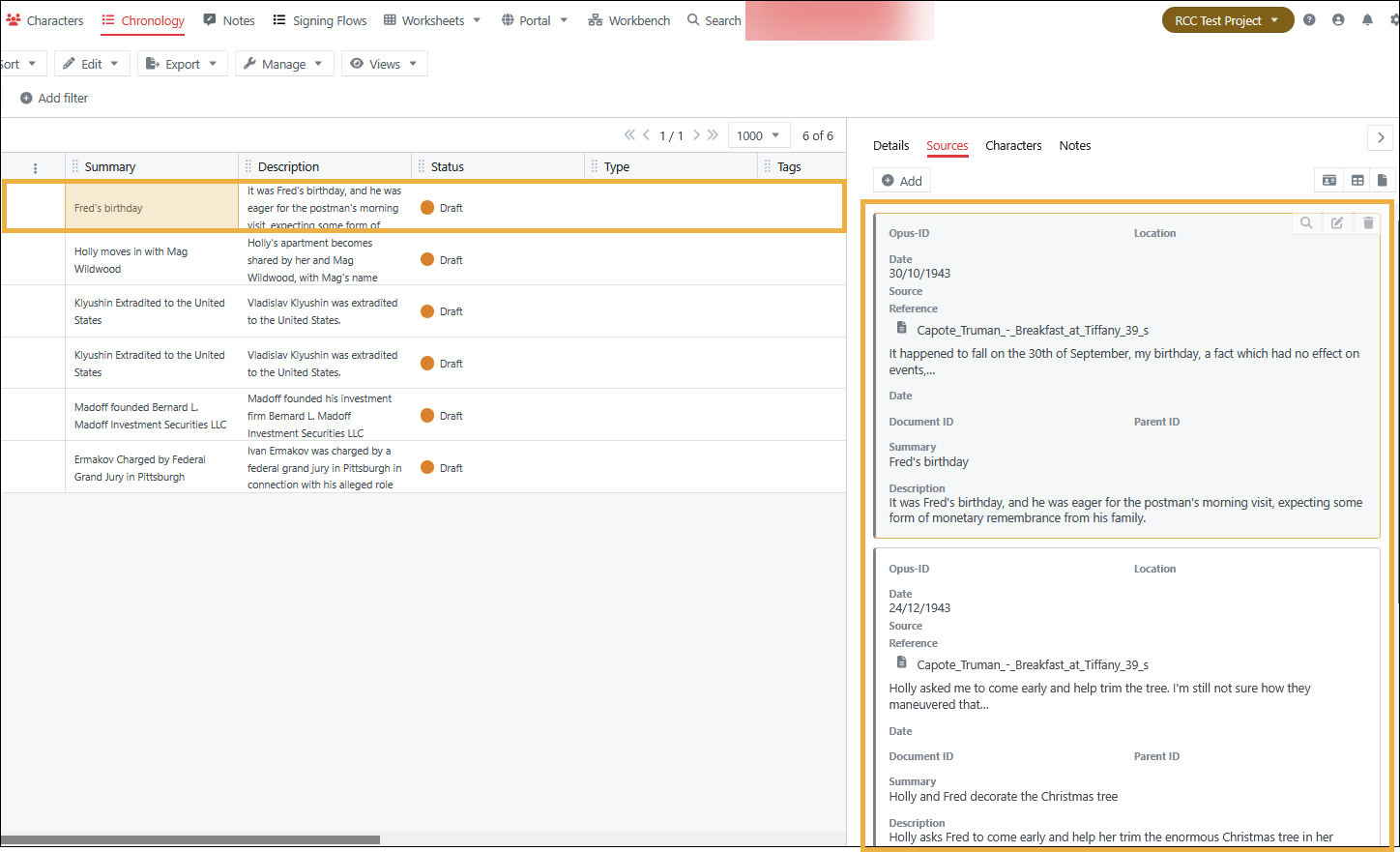
By default, AI Workbench associates the first source from merged records with a worksheet record and a single highlighted text per entry. From release 8.18.5 onwards, you can configure Opus 2 Platform to enable AI Workbench to associate multiple sources and multiple highlighted passages of text with an entity (Character, Chronology, Organisation). This means that, for example, a Character worksheet entry can hold multiple sources / highlights coming from AI Workbench, and attorneys can see and navigate to them directly from the worksheet.
Learn more:
Configuring AI Workbench to capture multiple sources
Using AI Workbench to analyse documents.
Related documentation
Opus 2 has help information accessible from within the application; accessible by clicking the question mark and then selecting Documentation in the upper right area of the platform application. You can also access the documentation at: Opus 2 Support.
How to contact us
To contact us about the documentation, or if you have any other questions or issues about Opus 2 solutions, contact Opus 2 Platform Support by emailing Opus 2 Platform Support.
Related articles
List of fixed Customer Support issues