
| Minimum Software Version | Spring26 |
| Solution(s) | Hearings ⨉ Cases International ✓ Cases US ✓ Institutions ⨉ Counsel ✓ |
The Opus 2 Platform allows for the creation of bespoke stamps. Stamps are configurable collections of document metadata that can be laid out and styled in a limited manner. All document metadata may be added to a stamp. In addition, the stamp manager allows for the addition of open text and images. Stamps can be added to individual documents or collections.
Note: We have an exciting new version of our stamps feature rolling out soon, hence the labelling of our existing version as "legacy".
Adding new stamps
Users can either choose to create a new stamp or select an existing stamp from the Manage stamps panel.
- Select the Manage dropdown.
- Select Manage stamps.
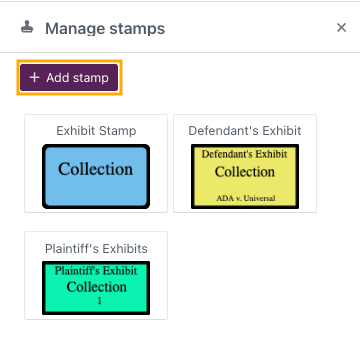
The Manage stamps panel opens on the left.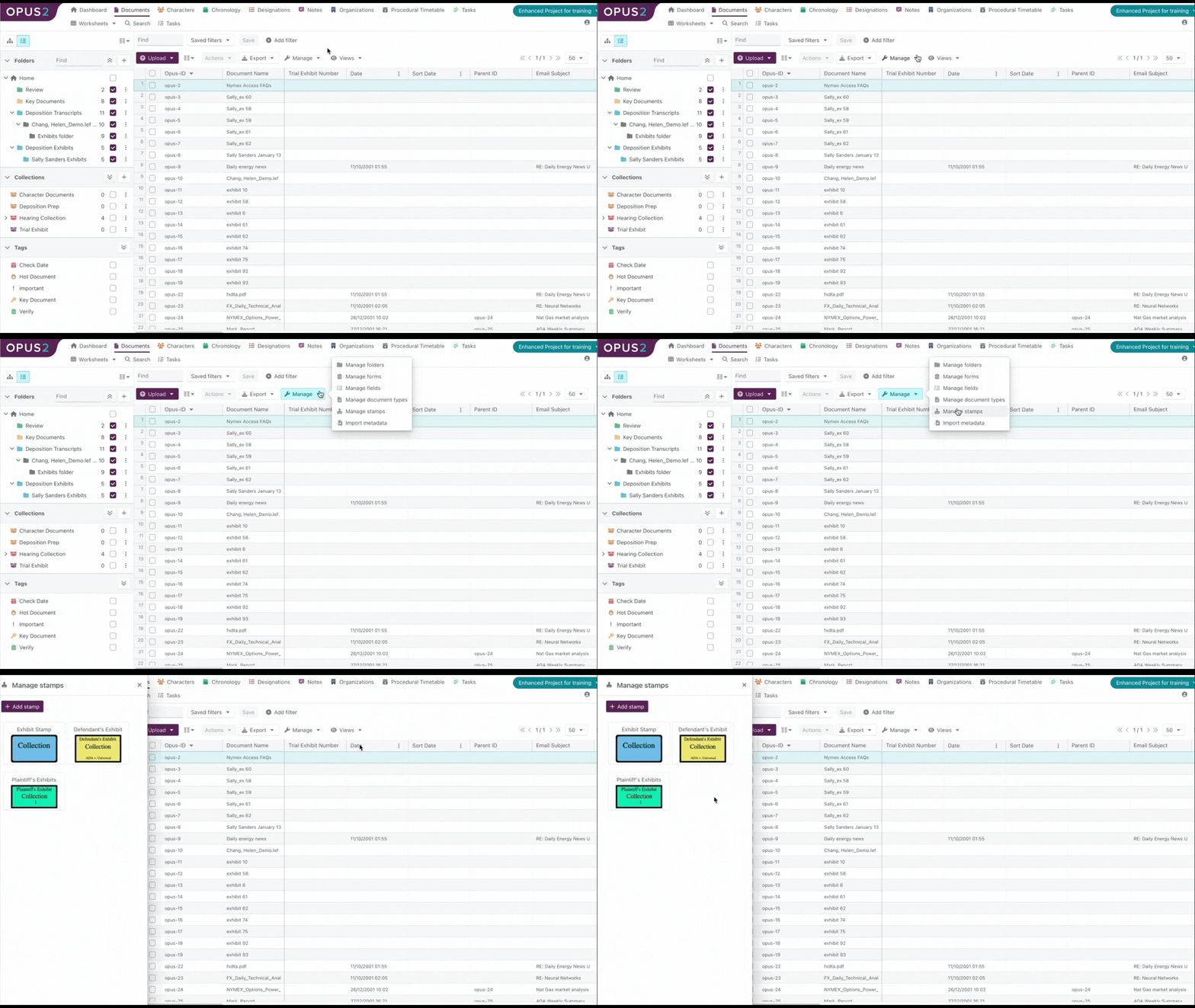
- To create a new stamp, select +Add stamp.
The Add stamp dialog box opens with the stamp builder empty.
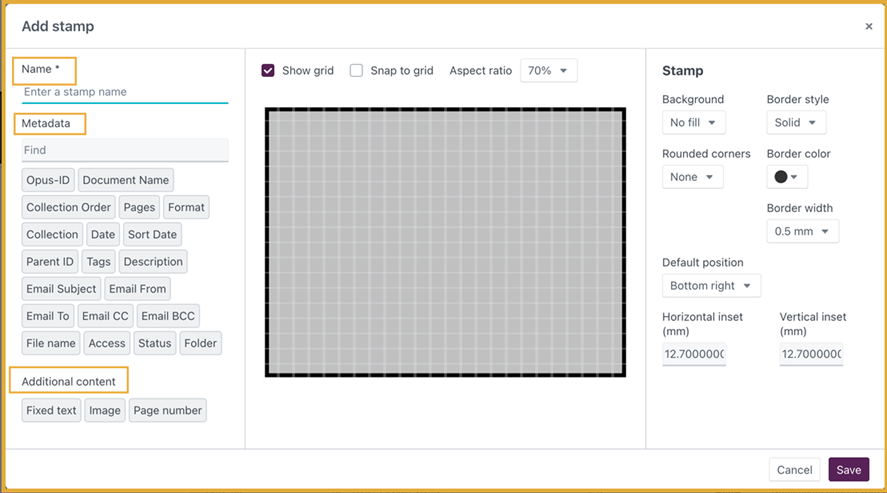
The left panel allows users to select which data should be included as the content of the stamp. Users can select from these options:
Option | Description | ||||||||
|---|---|---|---|---|---|---|---|---|---|
Name | This required field prompts users to name their stamp in order to easily store and locate it. The name does not become part of the stamp content but is information stored about the stamp to aid its functionality. | ||||||||
Metadata | The Metadata section has a Find feature so you can locate the information you want to add to your stamp. You can add to the stamp any of the metadata fields that can be applied to your documents. When you apply the stamp to a document, it retrieves the relevant metadata for each document to match the metadata fields that you have added to the stamp. Note: If a metadata field which has been included in the stamp has no content recorded for a particular document then that section of the stamp is be blank when applied to that document. | ||||||||
Additional content | There are three content options under Additional content:
|
- Give the stamp a Name.
- Drag the desired Metadata from the left panel into the stamp builder.
- Drag the desired Additional content from the left panel into the stamp builder.
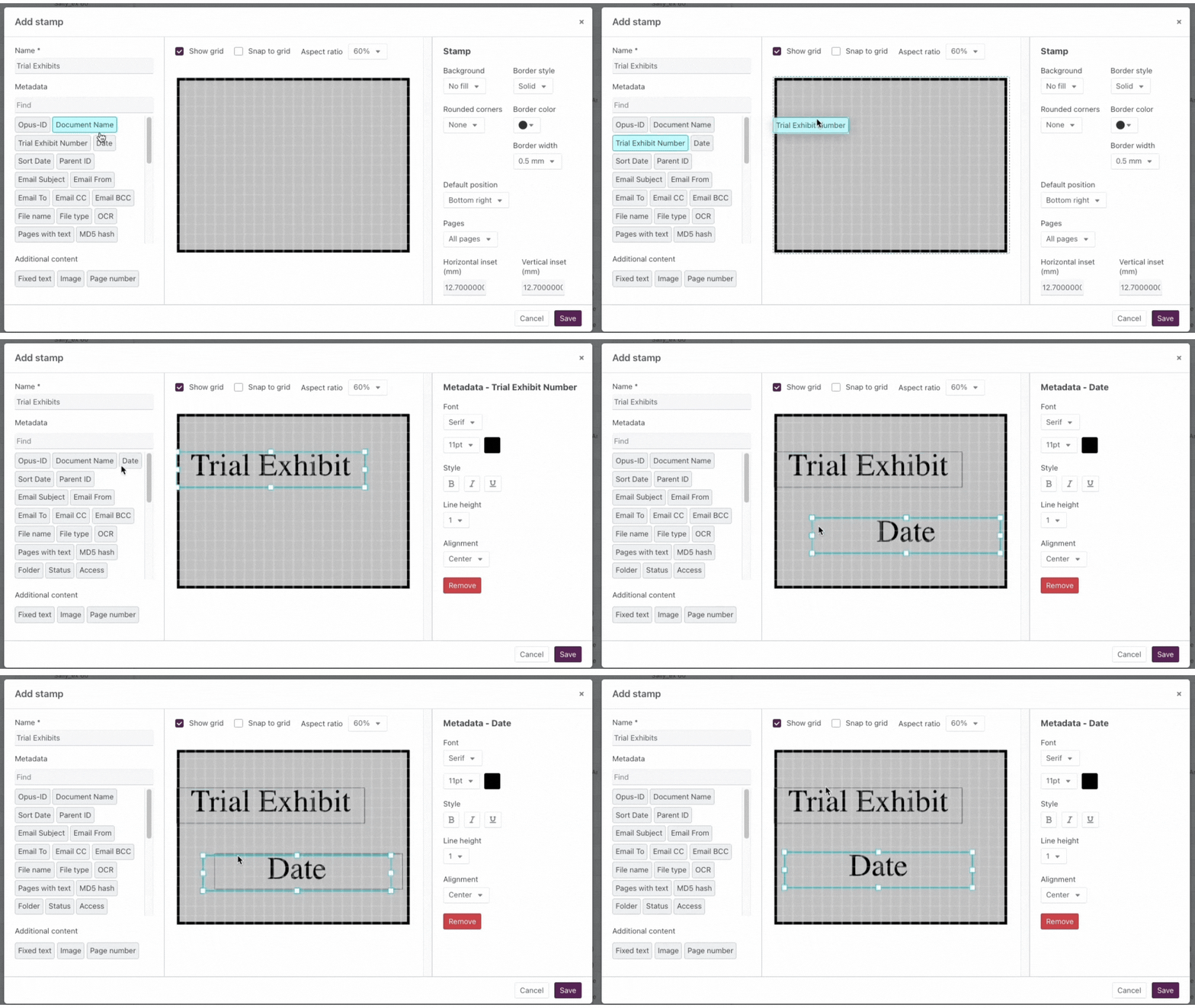
Tip: The metadata and content boxes can be moved, removed, and resized.
Use the options to the right to customise the Font, Style, Line height, and Alignment for each metadata box.
- Click anywhere in the grey area of the stamp builder to open the Stamp options.
- Use the Stamp options to customize the overall stamp, such as Background, Border style, Default position, and Pages.
There are some additional customization options in the top center of the stamp builder:
| Option | Description |
|---|---|
| Show grid | Select this checkbox to turn the grid on/off while working on a stamp design. If you turn this function off when managing one stamp and then create a new stamp, the setting is retained. |
| Snap to grid | Select this option to force movement of any text boxes and images to be in line with the grid of the grey area. If movement falls between grid lines then the item snaps to the closest grid line. If the option is not selected then you have free movement of the text boxes and images across the grey area, regardless of the grid. |
Aspect ratio | Aspect ratio determines the proportional relationship between an object's width and height. To determine aspect ratio percentage, divide the height by the width and multiply the result by 100. You can select an aspect ratio between 20% and 100% at 10% intervals.100% aspect ratio would be a square and anything lower than this decreases the height in relation to the width, creating a landscape-oriented rectangle. |
Editing existing stamps
- Select the Manage dropdown.
- Select Manage stamps.
- To edit a stamp, select the desired stamp.
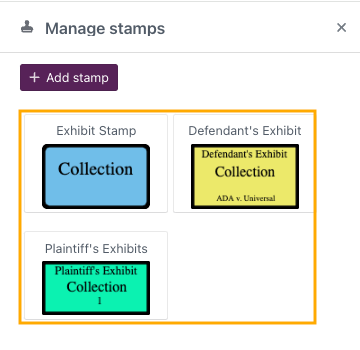
The Edit stamp dialog box opens with the stamp builder pre-populated.
- Remove information by selecting the desired metadata in the stamp builder, then select Remove.
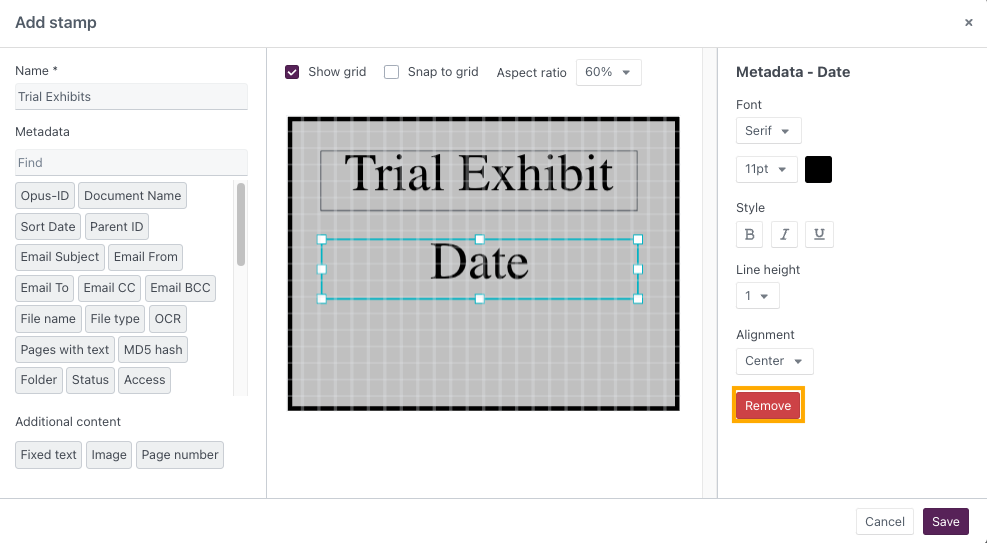
- To add new information, drag the desired Metadata from the left panel into the stamp builder.
- Follow the same steps as when adding a stamp.
Related articles