
| Minimum Software Version | Spring26 |
| Solution(s) | Hearings ⨉ Cases International ✓ Cases US ✓ Institutions ⨉ Counsel ✓ |
The Opus 2 Platform allows for the creation of bespoke stamps. Stamps are configurable collections of document metadata that can be laid out and styled in a limited manner. All document metadata may be added to a stamp. In addition, the stamp manager allows for the addition of open text and images. Stamps can be added to individual documents or collections.
There are three key ways you can work with stamps:
- Applying stamps to documents
- Setting default stamps on collections
- Using stamps on document exports
Note: We have an exciting new version of our stamps feature rolling out soon, hence the labelling of our existing version as "legacy".
Applying stamps to documents
- In the Documents page, select a document.
- Select Actions > Apply stamps.
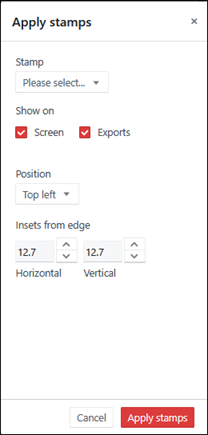
Choose a stamp and then choose the options for how the stamp should appear in the document.
Option | Description |
|---|---|
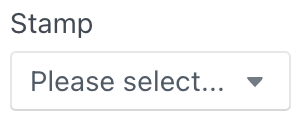 | Opens a dialog box with a list of all stamps and a Find function. You can select any of the existing stamps to apply to the selected document. Select Manage stamps if you need to create a new stamp. |
 | Choose whether the stamp should appear on the screen when users are working on the documents through Platform, and/or whether they should appear on document exports. For example, a stamp with legal firm branding may be useful on exported documents but not necessary for internal viewers of the documents working on Opus 2 Platform. Comparatively, a stamp using internal identifiers may be useful for users working on the documents but unnecessary for exported documents. |
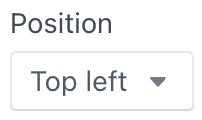 | Select the position the stamp should appear on the document page. The options are: Top left, Top right, Bottom left, Bottom right. Whichever position is selected, the stamp will initialise with an inset of 12.7 mm from the closest horizontal and vertical edge of the selected position. |
Customised stamp position
Stamps can be moved to a customised position either in the Apply stamps dialog, or in the Document Viewer on an individual page of a document to which the stamp has been applied.
In the Apply stamps dialog, you have two options to customise the stamp position.
Icon | Description |
|---|---|
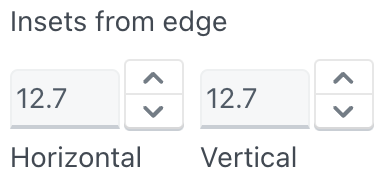 | Enter numerical values to determine the placement of the stamp using the horizontal and vertical inset from the page edge. Inset is counted from selected position of the stamp, for example, top left. The value is translated to millimetres in the actual page size. |
Alternatively, in the Document viewer, when you are working on a document to which a stamp has been applied, drag the stamp on an individual page to change its position. This is only possible if the stamp was initially added in a default position.
Setting default stamps on collections
When creating a collection you can set default stamps. When you view any of the documents in the collection, the stamp is applied.
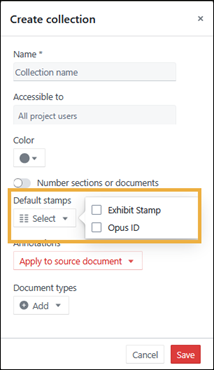
Note: When viewing the same document in a folder, the stamp is NOT applied - the stamp is only applied when viewing the document via a collection.
If the collection is exported, the stamp is included, however if the same documents are exported from a folder, the stamp is not included.
Using Stamps on document exports
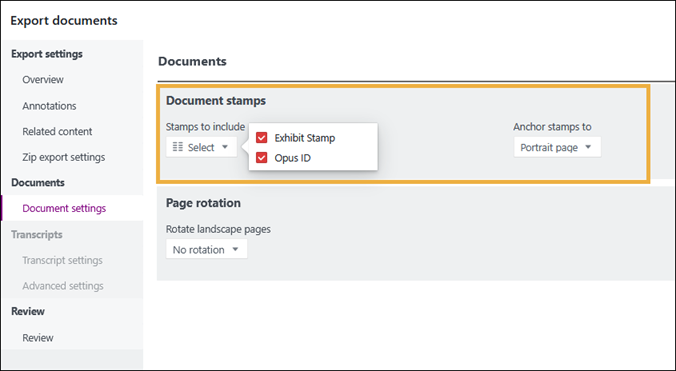
When exporting a document you see stamp-related options for document export.
To learn more, go to Export settings reference.
Related articles
Adding a custom Id field to pages and stamps