
| Minimum Software Version | Spring26 |
| Solution(s) | Hearings ✓ Cases International ✓ Cases US ✓ Institutions ✓ Counsel ✓ |
Improvements released now
Updating existing records using AI Workbench
Previously, adding entities to worksheets from AI Workbench restricted you to updating a record with the one source that appeared first in a group of merged entities. Now, if you want to add all the sources from merged entities to an existing record or simply update an existing record using an entity in AI Workbench, you can.
Note: In order to use this feature, you must have both Edit Worksheet and Manage Worksheet roles.
- After selecting your chosen entities, select Update existing worksheet record from the 3-dot kebab menu.
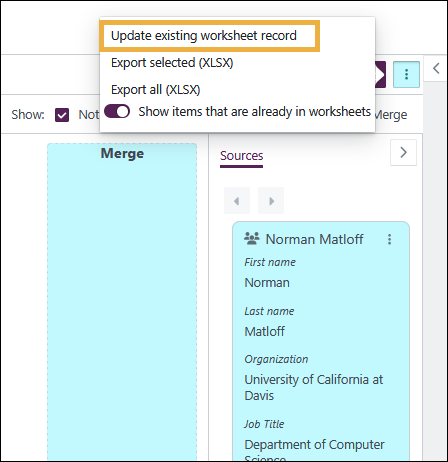
A dialog box appears with two choices:
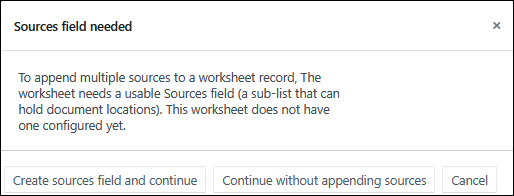
- If you select Create sources field and continue, a Sources subtype field and a highlighted text field are created for you, allowing the update of your chosen destination record with multiple source documents.
Important: If you create a Sources subtype and text field by selecting Create sources field and continue, this option does not clean up any redundant fields or add the highlighted text field onto forms and cards. To learn how to do this and to learn more in general about the Sources Subtype and associated field setup, go to Configuring AI Workbench to capture multiple sources.
- If you select Continue without appending sources, you can update your chosen record with one source but multiple sources are not exported to the destination record.
Learn more: Using AI Workbench to analyse documents and Configuring AI Workbench to capture multiple sources
Improvements in this past quarter
Focused View and Relativity improvements, learn more: Opus 2 v.8.18.6 Release Notes 3rd March 2026
Focused View and AI Workbench improvements, learn more: Opus 2 v. 8.18.5 Release Notes - 02/23/2026
Introduction of Focused View and Exporting improvements, learn more: Opus 2 v. 8.17.1 Release Notes - 01/20/2026
Exporting improvements, learn more: Opus 2 v. 8.17.0 Release Notes - 01/13/2026
Upcoming features
Customisable Table of Contents for Bundles (collections)️ - Preview release
We are introducing a new Table of Contents editor designed to give you greater flexibility in creating court-compliant indexes across key jurisdictions. The updated experience will be more intuitive and easier to use, with real-time preview capabilities. You will be able to set up a table of contents with flexible formatting and layout options, including font type, font size, headings, and section headings, a choice of unified or section-level tables, and control over column layout and visibility.
Stamps - Preview release
Based on customer feedback we are investing in a new, modernised Stamps experience in order to provide an improved way to create, manage, and export stamps. The new Stamps feature will introduce, among other things:
- A more flexible and intuitive stamp builder, enabling you to easily create and customise stamps with concatenated fields, and helping you to design consistent, tailored stamps.
- Real-time preview to make stamp setup clearer and more predictable.
- Consistent stamp application and removal across documents, collections, and proxy documents, including the ability to remove a specific stamp, not just “remove all”.
- Metadata fields remain supported (as in Legacy Stamps), with more focused styling controls to prioritise consistent output between the platform and exports.
Search
We're improving our Search functionality to deliver faster, more accurate, and more reliable results.
These updates seek to:
- Return results more quickly and with greater accuracy.
- Provide clearer, more consistent highlighting so results are easier to understand and trust.
- Enable us to detect and resolve issues earlier through improved monitoring.
AI for Hearings
Opus 2 is aiming to deliver real-time inconsistency checking on live transcriptions in multi-party hearings. In this setting, a workspace contains all the documents compiled by a case team, and the objective is to use this knowledge base to generate real-time insights from the live transcription.
Related documentation
Opus 2 has help information accessible from within the application; accessible by clicking the question mark and then selecting Documentation in the upper right area of the platform application. You can also access the documentation at: Opus 2 Support.
How to contact us
To contact us about the documentation, or if you have any other questions or issues about Opus 2 solutions, contact Opus 2 Platform Support by emailing Opus 2 Platform Support.