
| Minimum Software Version | 8.17.X Winter25 |
| Solution(s) | Hearings X Cases International ✓ Cases US ✓ Institutions ⨉ Counsel ✓ |
Important: The accuracy, reliability, and usefulness of AI-generated output is directly influenced by the clarity and completeness of the information provided in the prompt. Like a human lawyer, the first draft is never the final version. As a user you will need to follow-up on the AI output with one or multiple prompts to further guide, clarify and specify your requests to help the AI produce the best possible response. Review, verify, and apply professional judgment before relying on AI-generated content.
Overview
Following Opus 2's acquisition of Uncover in October 2025, Opus 2 Cases and some of Uncover's AI technology have been integrated into the Opus 2 platform. As per the diagram shown below, there are now two views - Detailed View and Focused View. Detailed View is the existing Opus 2 Cases interface that you already know and all functionality you depend on is still available and unchanged. Focused View is a new, streamlined, AI-first, Uncover-inspired view where you can access the first capabilities arising from this integration. You can seamlessly switch between the two views and documents surfaced by using Matter or Documents Assist in the Focused View can be added to collections or worksheets in the Detailed View.
Tip: Any worksheet with a source ID field can receive documents from the Focused View.
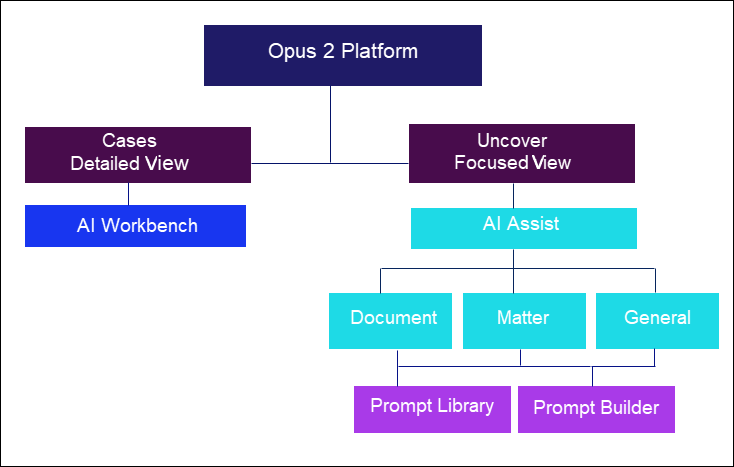
Which AI Assist do I use for which task?
- Matter - Ask questions to query all available documents in your Focused View, especially useful when you don't know which documents hold the answers. You can also filter down to a subset of documents; answers are based on partial document findings and not complete documents.
- Documents - Ask questions about a small number of pages (circa 150 pages), where you already know something about their content. For example, ask for comparisons or ask for inconsistencies. Answers are based on complete documents.
- General - Ask questions not related to the legal matter, develop drafts, and understand industry or domain concepts.
- Saved conversations - When using any AI Assist, you can save your conversation and come back to it later on.
- Documents Library - Search the wider document library, view documents, filter on tags, download documents, or add tags.
- AI Workbench - Find and filter all the entities found in a batch of documents. View the source documents that the entities have been found in, including viewing the summaries, key sentences, characters, organisations, and events.
Note: All three AI assist tools have access to the Prompt Builder and the Prompt Library. The Prompt Builder guides you through the creation of prompts and the Prompt Library is a curated collection of pre-built prompts written by legal experts.
Three ways to use Matter Assist
- Early understanding of the case
In early case assessment, lawyers can ask Matter Assist to highlight potential liability, identify key issues, and factual gaps based on hundreds of pages of documents, without needing to know which documents matter. Upon the lawyer's prompt, Matter Assist scans the entire corpus of documents, identifies thematic clusters, highlights pivotal events, and produces a structured summary of what the evidence supports, giving lawyers an immediate, high-level understanding of the case.
- Valuable responses to targeted questions
Lawyers can ask Matter Assist targeted questions across all case documents, for example, to summarise prior correspondence, or synthesise how the evidence supports the facts. Matter Assist delivers a clear, issue-focused briefing tailored to the query.
- Fast responses to specific questions across a matter
Matter Assist can be used for concept and thematic searching, rather than relying on traditional keyword search/ When a partner asks, “Where in the record do we show that the supplier knew about the defect in 2019?”, the lawyer does not need to remember or search for specific documents. Matter Assist scans all text in all documents across the case, locates every reference, evaluates their significance, and provides a clean, cited answer—streamlining internal workflows and improving turnaround time for client updates.
Three ways to use Documents Assist
- Pinpointing information
Use Documents Assist to pinpoint critical clauses and passages across pleadings, contracts, expert reports, deposition transcripts (US), witness statements, and more. For example, you can instantly locate indemnity language or termination provisions in a supply agreement, or the exact page where a witness contradicts prior testimony.
- Removing complexity
This tool can help you understand and contextualise complex client documents, providing you with a plain-English breakdown.
- Asking comparative questions
Use this tool to ask targeted questions and assign tasks grounded in specific documents, such as “Compare this expert report to the plaintiff’s allegations, or ”Identify inconsistencies between these two witness statements”.
Three ways to use General Assist
- Developing drafts
When drafting a document, for example, an internal memo, client update or a pleading, lawyers can ask General Assist to generate a first draft based on general legal principles or drafting conventions. Because all work is created within the secure Opus 2 environment, lawyers can do this without needing to copy sensitive material into external systems or navigating between multiple platforms. This ensures consistency, protects confidentiality, and accelerates drafting workflows.
- Procedural preparation
For an upcoming meet-and-confer, or scheduling conference, lawyers can use General Assist to quickly clarify typical court expectations, or generate talking points—without accessing external tools or switching between platforms. The result is a streamlined preparation process in which all notes, and drafts are created and stored securely, ensuring a consistent workflow.
- Understanding business and industry concepts
Litigation often requires lawyers to quickly grasp non-legal concepts, such as the difference between revenue recognition models, the mechanics of a specific financial product, or common practices in a regulated industry. With General Assist, lawyers can request clear explanations of these business concepts directly inside the Opus 2 environment. This delivers fast, background knowledge - helping lawyers to better interpret documents, prepare for expert meetings, all while maintaining firm-approved confidentiality and governance standards.
Related articles